
Building a Self-Hosted Media Homelab: Storage, Streaming, and Sync
A complete walkthrough of building a self-hosted media stack: Hetzner Storage Box for storage, Copyparty for file management, Navidrome for music streaming, Syncthing for device sync, and rclone for backups — no third-party cloud needed.
Introduction
I was looking for a simple way to access and manage my files — documents, music, photos — from both my laptop and phone, without relying on a third-party cloud service. I already had a Hetzner Storage Box mounted via SSHFS on my Cloudron server, so I needed something lightweight that could sit on top of that volume and give me a clean web interface.
This post documents the full journey: from ordering a Storage Box to having a working stack with file management, music streaming, device sync, and backups.
The Architecture
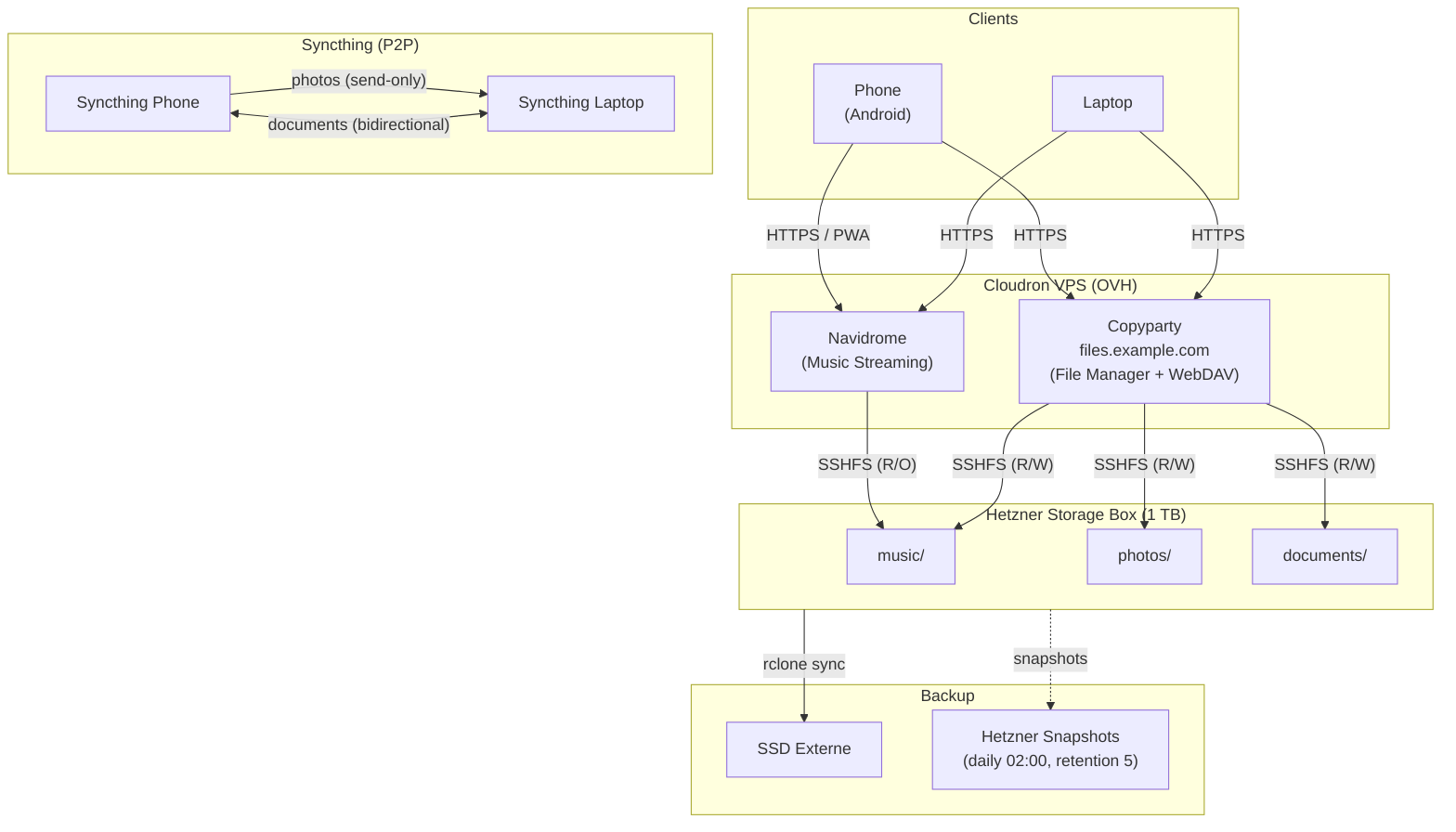
Here's what the final setup looks like:
- Hetzner Storage Box (1 TB) — the single source of truth for all data
- Cloudron VPS (OVH) — runs the apps, connects to the Storage Box via SSHFS
- Copyparty — web-based file manager for uploading, deleting, and browsing files
- Navidrome — dedicated music streaming server
- Syncthing — peer-to-peer sync for photos (phone to laptop) and documents
- rclone — backup to an external SSD
The Storage Box holds three directories: music/, photos/, and documents/. Both Copyparty and Navidrome read from the same SSHFS volume mounted in Cloudron.
Phase 1 — Storage Foundation
Hetzner Storage Box
I ordered a BX11 (1 TB, ~3.81 EUR/month). In the Hetzner Robot panel, I enabled SSH Support and External Reachability (required since my VPS is at OVH, outside the Hetzner network). SMB and WebDAV on the Storage Box are not needed.
SSHFS Volume in Cloudron
Cloudron natively supports SSHFS volumes from its admin dashboard — no need to configure systemd mounts manually at the OS level. I created a volume pointing to the Storage Box, with three subdirectories: music/, photos/, and documents/.
Data Migration from Backblaze B2
I migrated my existing data (75 GB) from Backblaze B2 to the Storage Box using rclone:
# Configure both remotes
rclone config  # type: b2 for Backblaze, type: sftp for Hetzner (port 23)

# Copy everything (does NOT delete from source)
rclone copy my-b2-remote:my-bucket/ my-hetzner-remote: --progress
Gotcha: when configuring the SFTP remote for the Storage Box, don't use a trailing / in the path — rclone lsd remote: works, but rclone lsd remote:/ returns a permission denied error.
Phase 2 — Copyparty (File Management)
What is Copyparty?
Copyparty is a self-hosted file server that provides a web UI for browsing, uploading, and managing files. It supports WebDAV, music streaming, photo galleries, and document browsing out of the box. For my use case, it's the file management layer — I use Navidrome for music playback separately.
Installation on Cloudron
Copyparty is not in the official Cloudron App Store. It's a community app that you need to build and deploy yourself using the Cloudron CLI.
The source repo is at: git.cathedral.gg/Ben/copyparty-cloudron-app
Step 1 — Clone and fix
git clone https://git.cathedral.gg/Ben/copyparty-cloudron-app.git
cd copyparty-cloudron-app
Heads up: three bugs in the current repo (as of April 2026) — I've opened issues for all of them:
- Empty
contactEmail—CloudronManifest.jsonhascontactEmail: "", which makescloudron installfail with a validation error. Set it to a valid email address. - Wrong config path —
start.shlaunches Copyparty with-c /app/code/initcfg, but that file is empty. Copyparty starts with no volumes and returns HTTP 500 on every request, failing the healthcheck. Change it to-c /app/data/cfg/copyparty.conf. - Missing Docker Hub image — the install scripts reference
stalecontext/copyparty-cloudron-appon Docker Hub, but this image doesn't exist. You'll need to build and push it yourself (see Step 2).
Step 2 — Build and deploy
Since the pre-built Docker image doesn't exist on Docker Hub, you need to build and push it yourself. You'll need Docker and a Docker Hub account.
# Login to your Cloudron instance
cloudron login

# Build the image and push to Docker Hub
cloudron build  # enter your Docker Hub repo when prompted, e.g. youruser/copyparty

# Install the app
cloudron install
Choose a subdomain when prompted (e.g. files.example.com). The admin password is auto-generated — check the app logs for it.
Linking the SSHFS Volume
Once Copyparty is running, connect it to the Storage Box:
- In the Cloudron dashboard, go to the Copyparty app settings
- Under Volumes, add your SSHFS volume
- Important: set the mount to read-write, not read-only — otherwise Copyparty fails to create its
.histmetadata directories and won't initialize the volumes
The volume appears inside the container at /media/<your-volume-name>/.
Configuring Copyparty Volumes
Edit the config via the Cloudron Web Terminal:
vi /app/data/cfg/copyparty.conf[global]
e2dsa # enable file indexing and filesystem scanning
e2ts # enable multimedia indexing
ansi # enable colors in log messages
ed # enable WebDAV
[accounts]
admin: YOUR_PASSWORD_HERE
[/music]
/media/<your-volume-name>/music
accs:
rwmda: admin
[/photos]
/media/<your-volume-name>/photos
accs:
rwmda: admin
[/documents]
/media/<your-volume-name>/documents
accs:
rwmda: adminEverything is private — admin-only access. Restart the app from the Cloudron dashboard after editing.
Note: after the first start with a large dataset, Copyparty will index all files. Uploads are blocked during indexing (you'll get a 503 error). Wait for it to finish — check progress in the app logs.
Phase 3 — Navidrome (Music Streaming)
Navidrome is available in the official Cloudron App Store — a one-click install. I pointed it to the same SSHFS volume as Copyparty, specifically the music/ subdirectory.
The setup is straightforward:
- Install Navidrome from the Cloudron App Store
- Add the SSHFS volume in the app settings (same volume as Copyparty)
- Configure the music folder path inside Navidrome
- Restart — Navidrome auto-indexes all tracks
Navidrome handles playback, Copyparty handles file management. They both read from the same storage — upload a new album via Copyparty, and it appears in Navidrome after the next scan.
Phase 4 — Syncthing (Device Sync)
I initially planned to run Syncthing on the VPS as an always-on relay node. But after thinking it through, I realized I didn't need it:
- Photos: I want to offload photos from my phone to my laptop, sort and organize them locally, then use rclone to copy the sorted photos from my laptop to the Hetzner Storage Box.
- Documents: bidirectional sync between phone and laptop for a small set of documents. Syncthing handles this peer-to-peer, using public relays when the devices aren't on the same network.
The setup:
- Laptop: Syncthing installed via pacman, running as a user service (
systemctl --user enable --now syncthing.service), withsyncthingtray-qt6for system tray integration - Phone: Syncthing installed from F-Droid, camera folder configured as send-only
No VPS involvement, no Cloudron app. Simple and effective.
Phase 5 — Backup Strategy
The Storage Box is the single source of truth, so it needs to be backed up:
- Hetzner Snapshots: enabled automatic daily snapshots at 02:00, with 5-day retention. This is free and built into the Storage Box.
- External SSD backup: a simple shell script on the desktop that uses
rclone syncto mirror the Storage Box to a plugged-in SSD. No scheduled job — I run it manually when I think of it.
# The backup script detects mounted external drives and lets you pick one
rclone sync hetzner-remote: /path/to/ssd/backup/ --progress
Day-to-Day Workflow
Once everything is wired up, the workflow is straightforward:
- Music: upload new tracks via Copyparty, listen via Navidrome's web player — both read from the same storage
- Photos: Syncthing syncs them from my phone to my laptop, I sort them locally, then upload to Copyparty for long-term storage on the Storage Box
- Documents: Syncthing keeps them in sync between my phone and laptop, Copyparty provides web access from anywhere
Everything sits on a Hetzner Storage Box, which means storage is cheap (~3.81 EUR/month for 1 TB), while the apps on Cloudron handle the presentation and access layer.
Conclusion
The full stack — Hetzner Storage Box + Copyparty + Navidrome + Syncthing + rclone — covers all my needs without any third-party cloud dependency. The total cost is the Storage Box (~3.81 EUR/month) plus the existing VPS I was already paying for.
The biggest friction was getting Copyparty running on Cloudron due to bugs in the community package, but once those were fixed, everything clicked into place. If you're considering a similar setup, I'd recommend starting with the storage layer (it's the foundation everything else depends on) and adding services one at a time.